AI FOR EDUCATORS · GRADES 6–12
Five AI Tools Worth Trying If You Teach Middle or High School
Practical picks for grades 6–12, with free ways to get started.
A full day of teaching can still leave you with a full evening of work. There are essays waiting for feedback, readings to adjust, tomorrow’s lesson to finish, and students who need a little more support or a little more challenge.
AI may be able to help with parts of that workload. The useful question is where it can give you a starting point that is worth your time. These five tools stand out for different secondary teaching tasks, and each offers a free starting option. Features, limits, and school access vary.
Some of these also appeared in my elementary teacher guide. Here, the focus is on older students: stronger writing, complex content, research, and assignments that keep students doing the thinking.
1. Brisk Teaching: Help students move from a first draft to a better one
Why it’s useful: Brisk helps draft writing feedback, create instructional materials, and adapt text inside tools teachers already use. It works through Chrome and Edge and offers a free teacher plan, with additional school and district features available for a fee. [1]
A real classroom example: At Barbers Hill ISD in Texas, high school English teacher Kelly Collins describes using Brisk to help provide timely, meaningful writing feedback. In the company’s case study, she says, “Brisk has lightened that load without compromising quality.” [2]
Try it: For an eighth-grade argument paragraph, ask for one comment about the evidence and one question that pushes the student’s reasoning further. Review the suggestions, add what you know about the student, and let the student make the revisions. The useful part is a better next step, not a rewritten paper or an automatic final grade.
2. Diffit: Make complex content easier to enter
Why it’s useful: Diffit helps create and adapt reading materials, vocabulary supports, and activities. That can help when students share a learning goal but need different levels of support. Its free Basic plan includes creating resources and printing PDFs, with limits. Some exports and advanced features require payment. [3]
A real teacher’s experience: In a Diffit case study, Megan Green, a special education teacher at Westlake Middle School in Pennsylvania, describes creating materials for students with different math goals. “Now, making progress monitoring probes is maybe 5 to 10 minutes of talking to Diffit,” she says. That is her reported experience, not a guaranteed time saving. [4]
Try it: For a seventh-grade science lab, prepare vocabulary explanations and guiding questions to accompany the original instructions. Keep the science goal intact while reducing unnecessary reading barriers. Check that the adapted version preserves the details students need.
3. MagicSchool: Get past the blank lesson-plan page
Why it’s useful: MagicSchool offers education-focused tools for lesson planning, rubrics, quizzes, worksheets, and other teacher tasks. It is a practical option when you know what students need to learn but want help shaping the activity. The free teacher plan has limits; paid plans add capabilities and higher access. [5]
A real classroom example: In a 2023 WIRED interview, high school teacher Tim Ballaret described using MagicSchool to outline a year of lessons for an applied science and engineering class. He also created math problems around student interests. “Taking back my summer helped me be more refreshed for a new school year,” he said. [6]
Try it: Ask for a ninth-grade biology lesson on natural selection, including a discussion, a short activity, and an exit ticket that reveals a common misunderstanding. Compare the draft with your curriculum and standards before using it. A polished lesson plan still needs a teacher’s judgment.
4. Gemini Notebook, formerly NotebookLM: Build review materials from sources you choose
Why it’s useful: Google’s source-based notebook tool can turn selected readings, notes, and slides into study guides, practice questions, and audio summaries. Its answers include citations back to source material. Google offers no-cost access through Workspace for Education, with usage limits and administrator setup; paid options provide expanded access. [7]
A real classroom example: Google reported that Jessica Collazo at Southwest Miami Senior High School used a NotebookLM class notebook for exam review. Students reviewed test questions there and used Gemini’s Guided Learning to explore why answers were wrong. The account describes her moving around the room to give more individual support. This example used both tools, not the notebook alone. [8]
Try it: Add readings you are permitted to upload and your unit notes, then request a review guide on the causes of the American Revolution. Check the citations and questions before sharing. Have students return to the original documents to support their answers. An AI summary can help review a source, but it should not become the only source they read.
5. Canva Education: Help students show what they understand
Why it’s useful: Canva brings presentations, posters, infographics, and other visual projects into one place. AI features such as Magic Write can help draft an outline or brainstorm ideas, while templates help organize the finished material. Canva Education is free for eligible, verified K–12 educators. [9]
A real teacher’s experience: In Canva’s Berkeley County Schools case study, middle school English teacher Julie Oldfield describes using templates and varied project formats to give students more creative options. “Canva has become a major time-saving aid in the classroom for myself as a teacher,” she says. That testimonial describes Canva overall, rather than one AI feature. [10]
Try it: Have students create an infographic comparing two historical events or explaining an environmental issue. Supply the rubric and require reliable sources, evidence, and a short explanation of their design choices. AI might help suggest an outline, but students should decide what belongs in the project and be able to explain why.
Start with the work that needs the most help
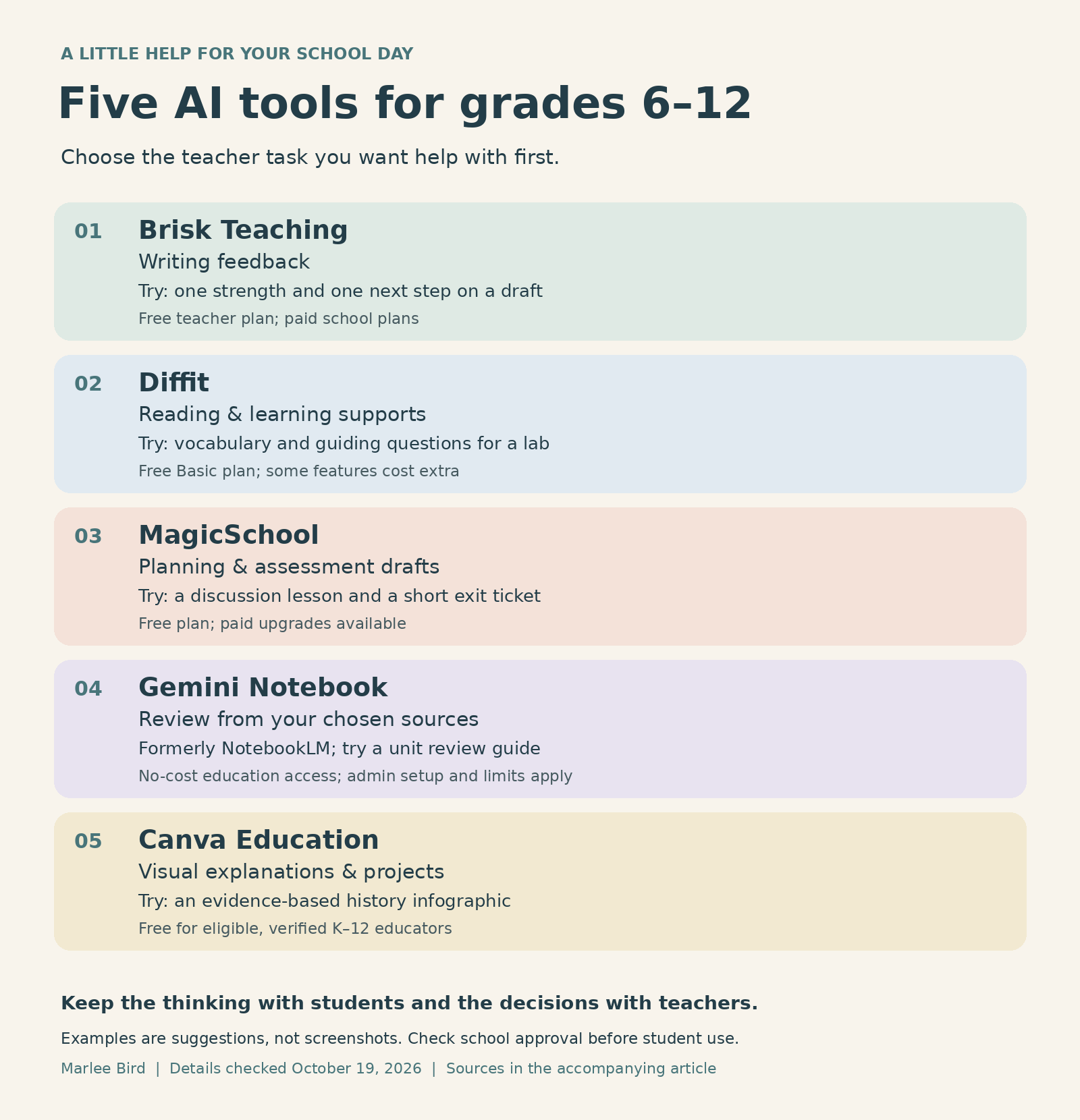
For writing feedback, try Brisk. For adapting materials, explore Diffit. For planning, start with MagicSchool. For review built around selected sources, look at Gemini Notebook. For visual explanations and projects, try Canva.
Start with a teacher task before introducing a new tool to students. Check district approval, account requirements, and privacy rules before uploading student work or assigning access. Sixth graders may be under 13, so age and account permissions deserve particular attention. Free access does not automatically mean every student can sign up independently.
When students do use AI, explain what help is allowed and what thinking must remain theirs. Ask them to show evidence, explain their reasoning, and describe any AI assistance. Pick one tool and one task to begin. Keep it if it helps you teach well and gives students a better opportunity to learn.
Details checked October 19, 2026. Educator quotes and reported examples come from published sources, including company case studies; they are not interviews conducted for this article or independent proof of learning gains. Suggested activities are labeled separately. Tool names and free-plan features can change.
Sources
- Brisk Teaching: current plans and free teacher features
- Brisk Teaching: Barbers Hill ISD and Kelly Collins
- Diffit: free Basic plan and paid features
- Diffit: Millcreek Township School District and Megan Green
- MagicSchool: current teacher plans
- WIRED: Tim Ballaret’s classroom experience, September 15, 2023
- Google for Education: Gemini Notebook features and no-cost education access and Google: product naming FAQ
- Google: Jessica Collazo’s exam-review example, November 5, 2025
- Canva: teacher tools and education eligibility
- Canva: Berkeley County Schools and Julie Oldfield